
The Dashboard provides a structured, strategic way to guide learners through training. Rather than requiring learners to navigate a large alphabetical list of courses, which becomes increasingly difficult as organizations accumulate years of training history, the Dashboard allows administrators to prioritize learning visibility. This allows organizations to move from a passive course library to a guided learning experience.
Through the Dashboard, administrators can:
- Highlight required training
- Recommend learning
- Automatically surface relevant courses
- Control which sections learners see
- Set the Dashboard as the default landing page
The Dashboard includes three configurable sections:
- Continue Learning
- Required Learning
- Recommended For You
Dashboard Settings
The Dashboard Settings page allows administrators to configure how the Dashboard behaves for learners. To access it, navigate to Admin Tools > Dashboard Settings.
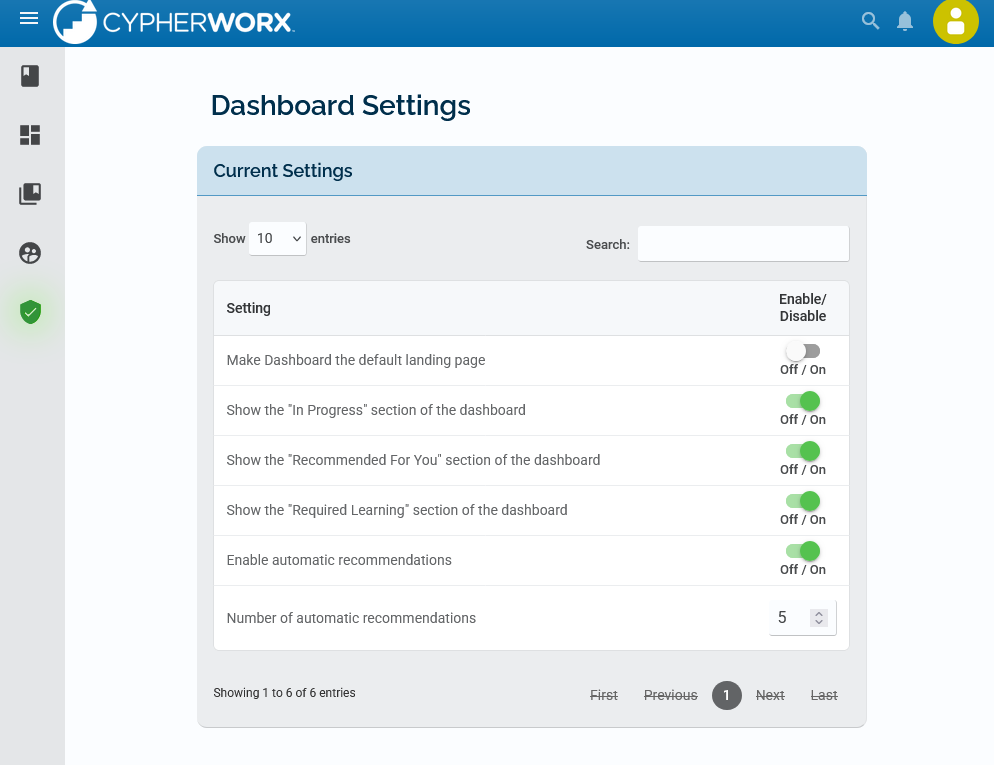
Make Dashboard the default landing page
This setting will make sure your learners land on the Dashboard page instead of the My Courses page for your site. The My Courses page will still be accessible to them, however Dashboards will become their default page.
Show the "In Progress" section of the dashboard
This setting allows site administrators to show or hide the Continue Learning section of the Dashboard.
Show the "Recommended For You" section of the dashboard
This setting allows site administrators to show or hide the Recommended For You section of the Dashboard.
Show the "Required Learning" section of the dashboard
This setting allows site administrators to show or hide the Required Learning section of the Dashboard.
Enable automatic recommendations
This setting allows site administrators to toggle automatic recommendations. If turned on, the system will attempt to recommend courses to learners based on their learning behavior and the reporting groups they belong to. The system will look at what their peers have completed and attempt to recommend similar courses.
Number of automatic recommendations
This setting allows site administrators to set a maximum number of automatic recommendations. The maximum limit is 20 courses.
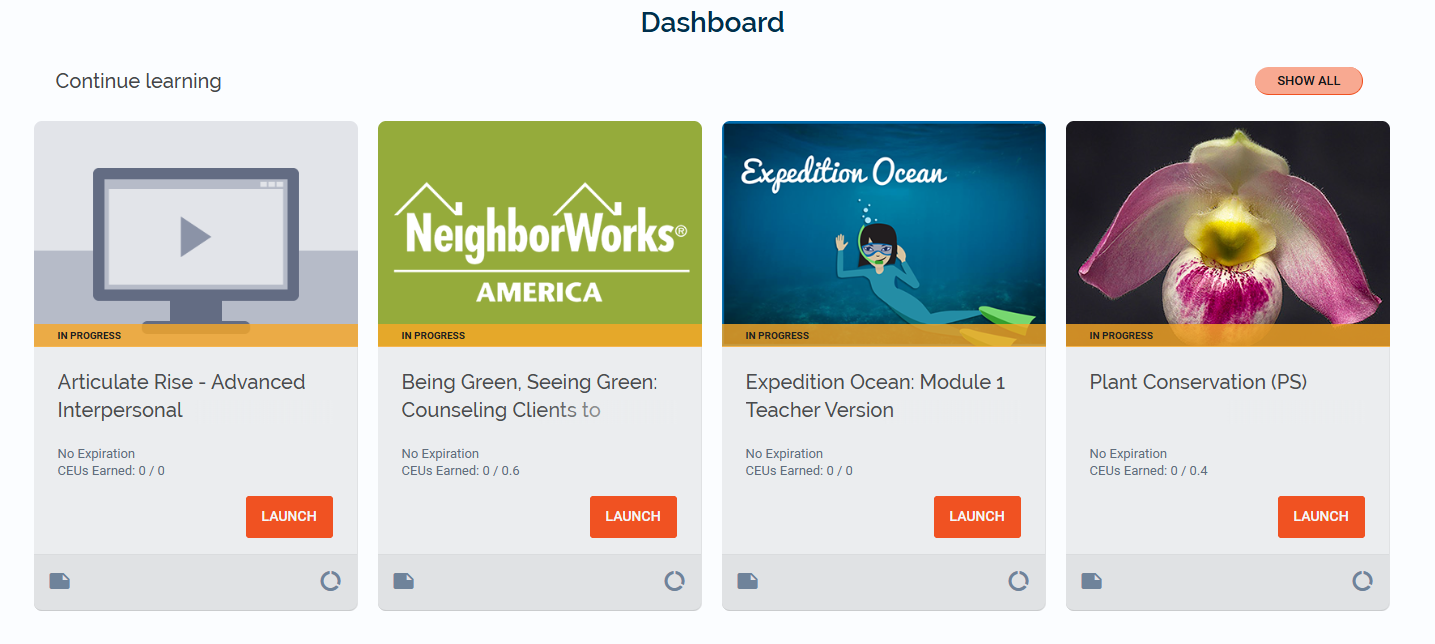
Continue Learning
The Continue Learning section automatically displays courses a learner has started but not yet completed. No administrative configuration is required for this section other than enabling or disabling it in Dashboard Settings.
Managing Required Learning
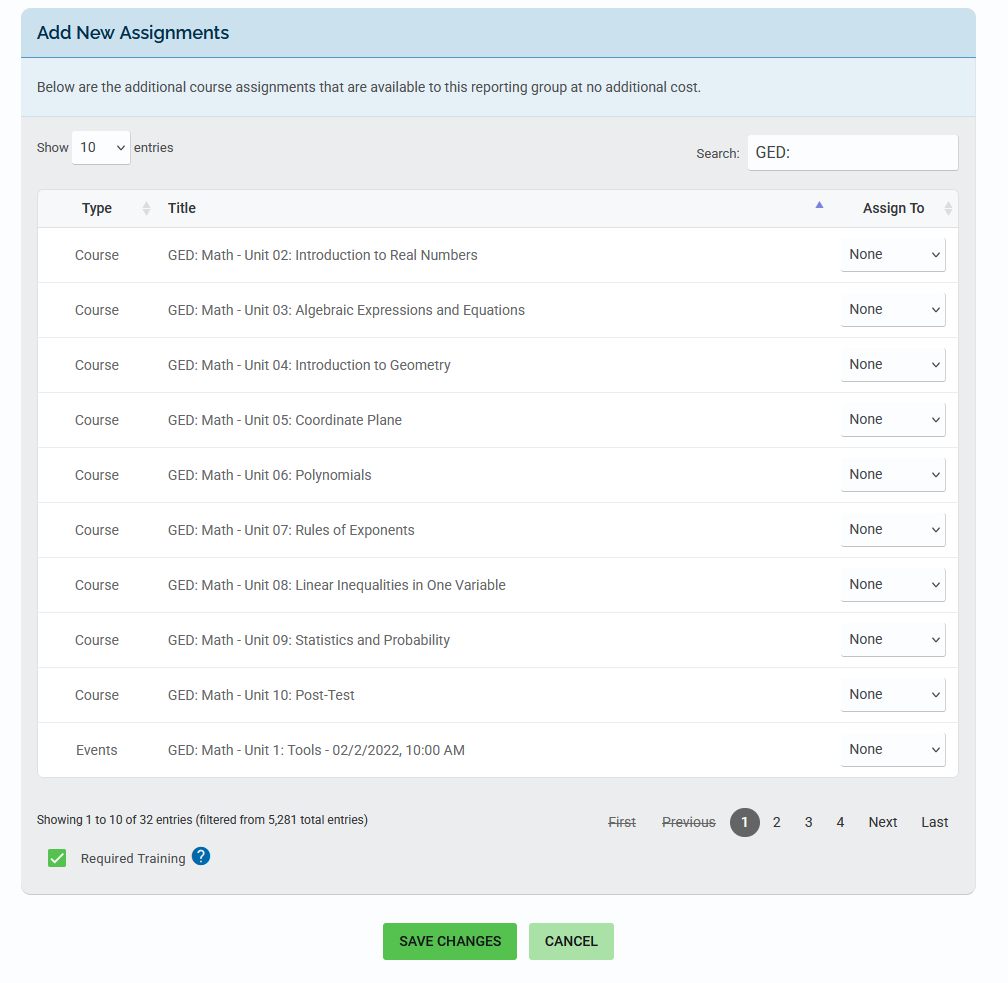
Administrators can require specific courses for learners through Reporting Groups. When a course is marked as required, it will automatically appear in the Required Learning section of the Dashboard for learners who belong to that Reporting Group.
To assign required training:
- Navigate to Admin Tools > Reporting Groups
- Create or select a reporting group.
- Scroll to Course Assignments and click Edit.
- Select the courses you would like to be required.
- Check the Required Training option at the bottom of the page
- Click Save Changes.
Courses will now appear in the Required Learning section for members of that Reporting Group.
Managing Recommended Learning
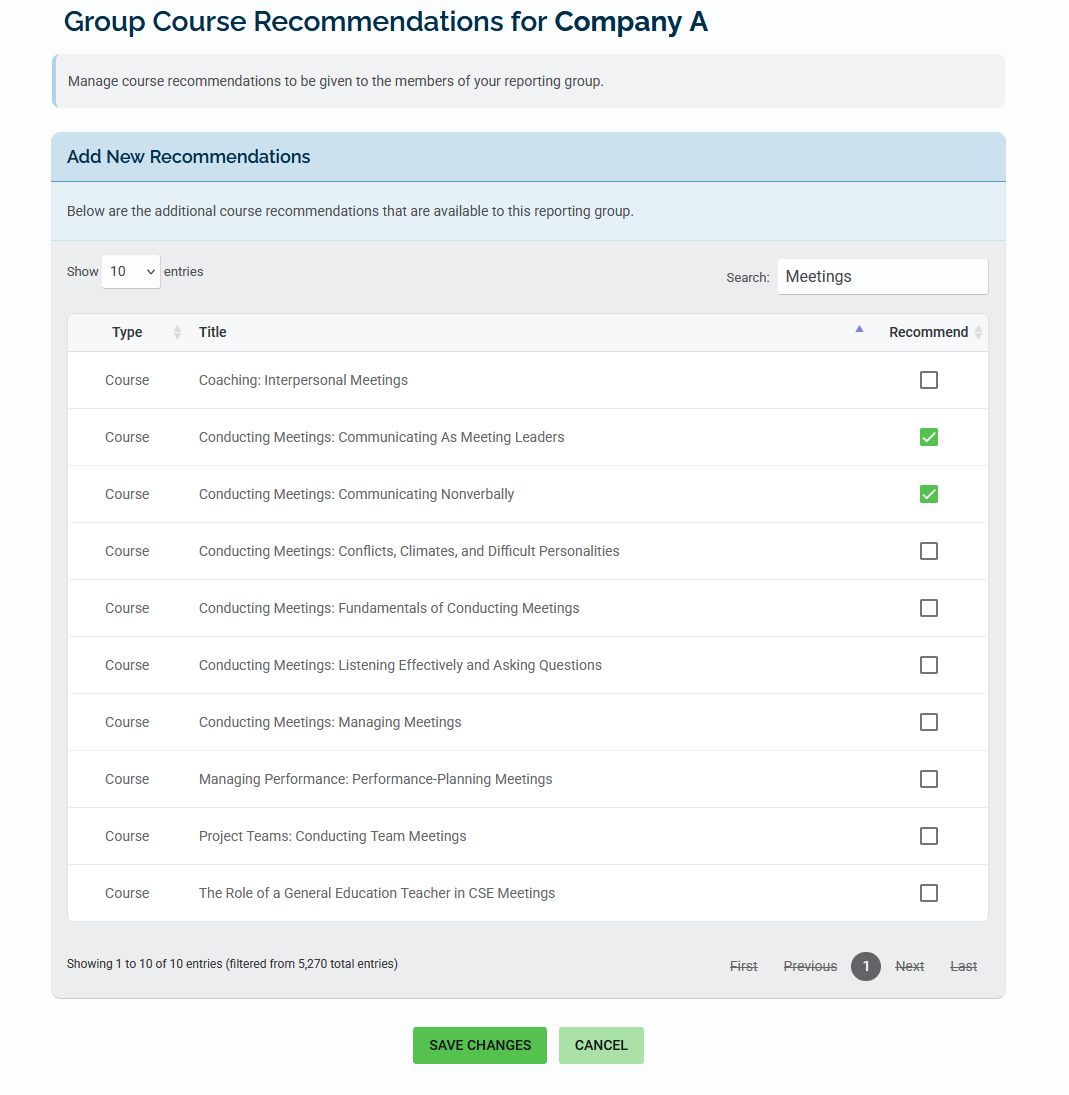
Administrators can also recommend courses to learners through Reporting Groups. Recommended courses will appear in the Recommended For You section of the Dashboard. To recommend training:
- Navigate to Admin Tools > Reporting Groups.
- Scroll to Course Recommendations, click Edit.
- Select the courses you would like to recommend.
- Click Save Changes.
These courses will display as recommended for members of that Reporting Group.
Note: If you are looking for information about how the Dashboard works from a learner’s perspective, please refer to the Dashboard for Learners article.